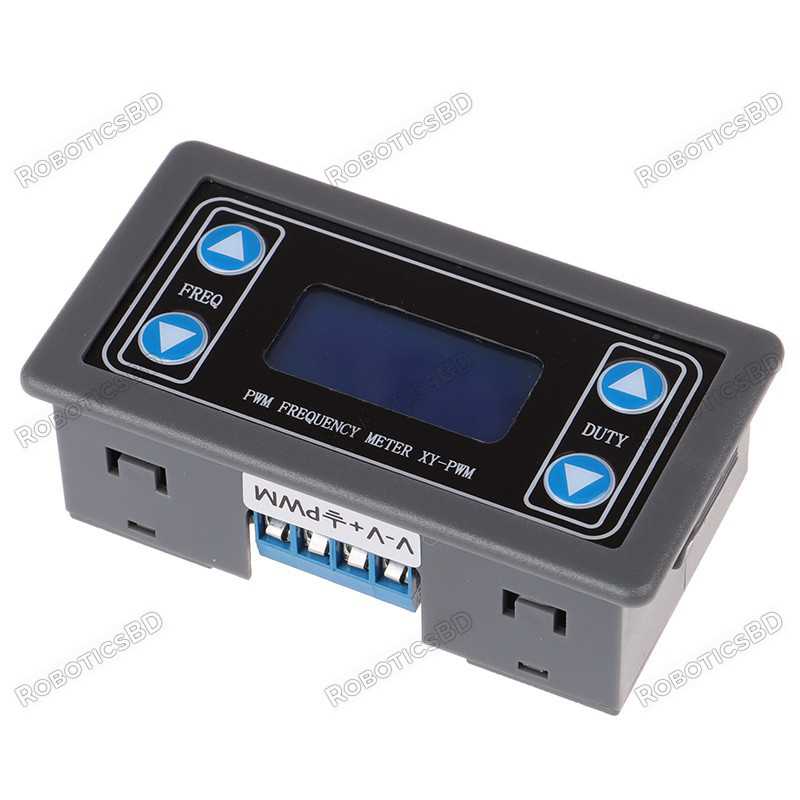
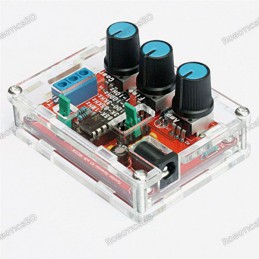
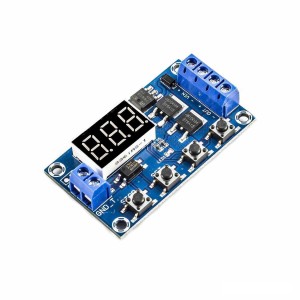
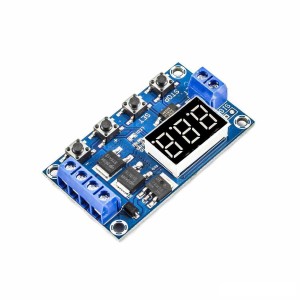
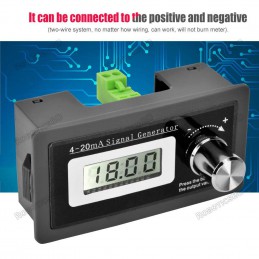
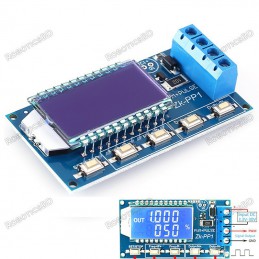
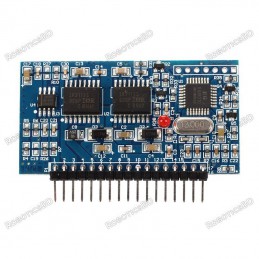
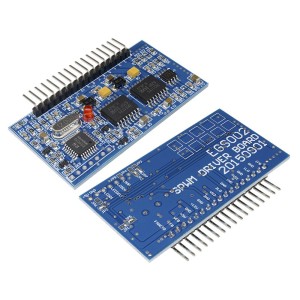
The PWM Signal Generator Panel Mount Module is a versatile and easy-to-use tool for generating precise square-wave signals with adjustable frequency and duty cycle. Operating within a 0–150kHz frequency range and supporting 0–100% duty cycle, it features a bright LCD display for real-time parameter monitoring and pushbutton controls for quick configuration. With a wide operating voltage of 3.3–30V and TTL serial interface, this module is suitable for both beginners and professionals working on electronics projects. Its panel mount enclosure ensures durability, while its flexible functionality makes it perfect for applications such as motor speed control, LED dimming, servo testing, and general PWM signal experiments. Featured By RoboticsBD.
Product Images are shown for illustrative purposes only and may differ from the actual product.
RoboticsBD RoboticsBD RoboticsBD RoboticsBD RoboticsBD RoboticsBD RoboticsBD RoboticsBD RoboticsBD RoboticsBD
Features:
Wide frequency range: 0–150kHz for versatile applications.
Adjustable duty cycle: 0–100% for precise control.
LCD display for real-time frequency and duty cycle monitoring.
Easy pushbutton interface for quick adjustments.
Supports 3.3V–30V input voltage for broad compatibility.
TTL serial interface available for advanced control.
Compact panel mount enclosure for secure and neat installations.
Reliable square-wave output with up to 30mA current capability.
RoboticsBD RoboticsBD RoboticsBD RoboticsBD RoboticsBD RoboticsBD RoboticsBD RoboticsBD RoboticsBD RoboticsBD
Applications:
Motor speed regulation and control experiments.
LED dimming and brightness adjustment projects.
Servo and solenoid driver testing.
General-purpose PWM signal generation for lab use.
Microcontroller-based PWM testing and development.
Educational and DIY electronics experiments.
RoboticsBD RoboticsBD RoboticsBD RoboticsBD RoboticsBD RoboticsBD RoboticsBD RoboticsBD RoboticsBD RoboticsBD
| General Specifications |
| Output Frequency Range | 0 – 150kHz |
| Duty Cycle Range | 0 – 100% |
| Waveform Output | Square wave |
| Operating Voltage | 3.3V – 30V |
| Output Pulse Amplitude | 3.3V – 30V |
| Output Current | 5 – 30mA max |
| Interface | Pushbutton + LCD, TTL Serial |
| Display | LCD showing frequency & duty cycle |
| Enclosure Type | Panel mount |
| Shipment Weight | 0.056 kg |
| Shipment Dimensions (cm) | 8 × 4 × 3 |
Please allow 5% measuring deviation due to manual measurement.
RoboticsBD RoboticsBD RoboticsBD RoboticsBD RoboticsBD RoboticsBD RoboticsBD RoboticsBD RoboticsBD RoboticsBD
Documentation:
Powering the Module
The module can operate from 3.3 to 30V power input on the V+ connection. V- is the ground connection.
The V+ input has a Schottky reverse polarity protection diode. The module logic circuits are powered from a 3.3V regulator, so the V+ voltage is usually selected to set the amplitude that is needed for the PWM output. If the PWM output will be used with 5V logic, the module should be powered from 5V.
Below 4V, the LCD backlight will start to dim, but the module will continue to work down to 3.3V.
The module draws about 20mA from the power source under typical 5V operation.
RoboticsBD RoboticsBD RoboticsBD RoboticsBD RoboticsBD RoboticsBD RoboticsBD RoboticsBD RoboticsBD RoboticsBD
Setting PWM Frequency
The frequency of the PWM output can be set over the range from 0Hz to 150kHz by pressing the FREQ Up / Down buttons. Holding the buttons down accelerates the frequency change. Pressing the down arrow increases frequency while pressing the up arrow decreases the frequency which is somewhat counter-intuitive
When the output is being adjusted, the display shows SET. When no adjustments are being made, it displays OUT.
The current frequency is shown in the upper half of the display with the decimal point indicating the range that is being displayed.
If the display shows XXX, the value is in Hz. A display of 500 indicated 500Hz. The value can be adjusted in increments of 1Hz over the range of 0-999Hz.
If the display shows X.XX, the value is in kHz. A display of 1.00 indicates 1kHz. The value can be adjusted in increments of 10Hz over the range of 1.00kHz – 9.99kHz.
If the display shows XX.X, the value is in tens of kHz. A display of 10.0 indicates 10kHz. The value can be adjusted in increments of 100Hz over the range of 10.0kHz – 99.9kHz.
If the display shows X.X.X, the value is in hundreds of kHz. A display of 1.0.0 indicates 100kHz. The value can be adjusted in increments of 1kHz over the range of 100kHz – 150kHz. This use of multiple decimal points isn’t the most intuitive way to display the value, but it’s not too bad once you get used to it.

RoboticsBD RoboticsBD RoboticsBD RoboticsBD RoboticsBD RoboticsBD RoboticsBD RoboticsBD RoboticsBD RoboticsBD
Setting PWM Duty Cycle
The duty cycle is the amount of time the output signal is HIGH vs LOW. If it is set to 60%, the signal will be HIGH for 60% of the time and LOW for 40% of the time.
The duty cycle can be set over the range of 0-100% by pushing the DUTY Up / Down buttons. Holding the buttons down accelerates the duty cycle change.
Pressing the up arrow increases frequency while pressing the down arrow decreases the frequency as you would expect.
The current duty cycle is shown on the bottom half of the display with a % sign after it.
If the duty cycle is set to 100%, the output will be a constant HIGH.
If the duty cycle is set to 0%, the output will be a constant LOW.
The Frequency and Duty Cycle settings are automatically saved during a power cycle.
.jpg)
RoboticsBD RoboticsBD RoboticsBD RoboticsBD RoboticsBD RoboticsBD RoboticsBD RoboticsBD RoboticsBD RoboticsBD
SERIAL CONTROL INTERFACE
The module has a serial port which provides control over the basic functionality of the module including setting the frequency and duty cycle as well as reading back the current settings. This port is available via some solder pads on the internal board which will require some soldering to use.
The serial port is 3.3V compatible, so if using with a 5V MCU, you will need to use a logic level shifter on the module RX line to avoid possible damage.
Communications use 9600 baud rate. As with any serial port, the TX/RX lines are cross-connected, so the MCU TX line connects to the module RX and the MCU RX line connects to the module TX. GND connects to the MCU ground and is not needed if the module power and ground are coming from the MCU.

The communications protocol is very basic as described below.
RoboticsBD RoboticsBD RoboticsBD RoboticsBD RoboticsBD RoboticsBD RoboticsBD RoboticsBD RoboticsBD RoboticsBD
Setting Frequency
Fxxx = Set Frequency
To set the frequency you send the data in the same format that it is displayed on the LCD proceeded by an upper case ‘F’.
‘F100‘ = Frequency set to 100Hz
‘F1.00‘ = Frequency set to 1kHz
‘F10.0‘ = Frequency set to 10kHz
‘F1.0.0‘ = Frequency set to 100kHz
The module responds with ‘DOWN‘ if the command was understood and ‘FAIL or FALL‘ if it wasn’t, such as if the command was formatted incorrectly.
RoboticsBD RoboticsBD RoboticsBD RoboticsBD RoboticsBD RoboticsBD RoboticsBD RoboticsBD RoboticsBD RoboticsBD
Setting Duty Cycle
Dxxx = Set Duty Cycle
To set the duty cycle, you send the desired duty cycle preceeded by an upper case ‘D’.
‘D050‘ = Duty cycle set to 50%
RoboticsBD RoboticsBD RoboticsBD RoboticsBD RoboticsBD RoboticsBD RoboticsBD RoboticsBD RoboticsBD RoboticsBD
Reading Current Settings
To read the current settings, you send a lower case ‘read‘.
The module will respond with the frequency and duty cycle like this:
read D050 F500
RoboticsBD RoboticsBD RoboticsBD RoboticsBD RoboticsBD RoboticsBD RoboticsBD RoboticsBD RoboticsBD RoboticsBD
Reading Current Settings
To read the current settings, you send a lower case ‘read‘.
The module will respond with the frequency and duty cycle like this:
read D050 F500
RoboticsBD RoboticsBD RoboticsBD RoboticsBD RoboticsBD RoboticsBD RoboticsBD RoboticsBD RoboticsBD RoboticsBD
MODULE CONNECTIONS
The connections to the module are straightforward with power on the upper left side, serial connections on lower left side and PWM output on the right side.
Note that the VIN+, VIN-, PWM and PWM GND connections have two connection points each. These are all connected internally, so only 1 pin of each needs to be connected. The grounds are also all in common.
V+= Power 3.3 to 30V
V- = Ground
PWM = PWM Output
GND = PWM Ground
Serial Port (labeled on backside of board)
GND = Serial Ground
TXD = Transmit Data out of the module. Connects to MCU RXD
RXD = Receive Data into the module. Connects to MCU TXD
RoboticsBD RoboticsBD RoboticsBD RoboticsBD RoboticsBD RoboticsBD RoboticsBD RoboticsBD RoboticsBD RoboticsBD
OUR EVALUATION RESULTS:
These modules have a good price/performance ratio and have good potential for embedding into a number of different applications.
Output Drive Limitations
The most likely issue to run into with these modules is trying to drive too large a load and have the output amplitude decrease too much due to the voltage drop through the 1K resistor R2. This resistor is selected to provide safe operation over the wide input voltage range. At 30V, it can pass 30mA and dissipate up to 0.9W which is why it is a physically large resistor.
For driving a logic input, this is not an issue since the current requirements are small, but if you are trying to get a little more drive from it without having to resort to hanging a MOSFET on the output there are some things you can do.
For a dedicated application where you know what voltage you will be using it with, such as 5V, R2 can be replaced or paralleled with a lower value resistor to increase the current handling capability and decrease the voltage drop through it.
The maximum current limitation depends on the current capability of the small transistor which is typically a MMBT3904 that can handle up to 200mA max continuous but is best kept down around 100mA to be on the safe side. A 50 ohm 1/2W resistor would work in this case to provide up to 100mA of drive at 5V.
To really boost the output, you can hang something like the High-Power Dual MOSFET module on the output.
Output Accuracy
The accuracy is pretty good. On a sample basis we measured the following.
- 100Hz / 50% duty cycle measured 100.54Hz with 50.07% / 49.93% duty cycle
- 1kHz / 50% duty cycle measured 1.01kHz with 49.90% / 50.10% duty cycle
- 10kHz / 50% duty cycle measured 10.05kHz with 48.98% / 51.02% duty cycle
- 150kHz / 50% duty cycle measured 151.72kHz with 35.59% / 54.41% duty cycle
At higher frequencies over about 10kHz, the duty cycle starts to decrease as the frequency increases.
Below are some O’scope waveform captures showing typical performance at these same frequencies.

RoboticsBD RoboticsBD RoboticsBD RoboticsBD RoboticsBD RoboticsBD RoboticsBD RoboticsBD RoboticsBD RoboticsBD 


RoboticsBD RoboticsBD RoboticsBD RoboticsBD RoboticsBD RoboticsBD RoboticsBD RoboticsBD RoboticsBD RoboticsBD
Example Using the PWM Signal Generator Serial Control Interface
To use the serial port, you will need to pop the case open, remove the board and solder a header or wires to the serial port solder pads.
The program below is very simple and just passes characters between your computer and a MCU such as a Mega 2560 or Uno board which then passes the characters to and from the PWM module.
It uses SoftSerial to provide the serial port for the XY-LPW Module so that it will work with any MCU even if it only has one serial port. We are using pins 10 & 11 for the softserial port so that it will work with the Uno and most Arduino boards.
Connect the module RXD to the MCU pin 11 and the module TXD to MCU pin 10
Connect V+ to the MCU 5V and V- to the MCU ground. The V- and serial port grounds are connected together on the board, so only one needs to be connected.
Note that the module RXD pin needs to have the incoming signal level shifted from 5V down to 3.3V to avoid possible damage. This can be done with a logic level shifter or a simple resistor voltage divider network.
Once the program is downloaded, open the Serial Monitor Window and ensure it is set for 9600 baud and also select ‘No Line Ending‘ or else the module will not recognize the command that you are sending it.
PWM Signal Generator Panel Mount Module - Serial Monitor Window 2You can type the command that you want to send to the module in the upper window and see what the module module responds with in the main window. The MCU echos the command it receives followed by the response of the PWM module.
Valid Commands:
Fxxx, Fx.xx, Fxx.x or Fx.x.x = Set the frequency
Dxxx = Set the duty cycle
read = Read current settings
Note that commands to set the frequency like F100 or duty cycle like D050 must be uppercase. To read the current settings the read command must be lowercase for no apparent reason whatsoever. Press enter to send the command.
An example output is shown here to the right and you should see the LCD display update with the new values. In this case the commands typed in and sent were read F100, D050, d40 (invalid command).
To see what the actual PWM output is doing, you will need an O’scope or frequency counter. Alternatively you can wire an LED with a 1K series resistor across the PWM output and keep the frequency down in the 1-10Hz range so you can see the LED flash rate change. Be sure to keep the series resistor value fairly high to avoid accidentally overloading the PWM output.
RoboticsBD RoboticsBD RoboticsBD RoboticsBD RoboticsBD RoboticsBD RoboticsBD RoboticsBD RoboticsBD RoboticsBD
PWM Signal Generator Control Test Program
/*  Simple program to exercise the PWM Module serial port

Uses hardware serial to talk to the host computer and software serial for
communication with the LPWM for compatibility with any MCU

Connections
  MCU 5V to module V+
  MCU GND to module V-
  MCU D11 to module RXD using a logic level shifter or voltage divider
  MCU D10 to module TXD

  When a command is entered in the Serial Monitor on the computer, the MCU will
  relay it to the LPWM module and echo it to the Serial Monitor window.

  Note that frequency and duty cycle are upper case i.e. 'F100' or 'D050'
  The 'read' query on the other hand is lower case.

  Ensure that Serial Monitor Window is set for 9600 and 'No line ending'

  Any characters returned from the module will be displayed in the Serial Monitor Window.

  Uses Softserial.h library.  Can use hardware serial port if MCU supports it
*/
#include <SoftwareSerial.h>
SoftwareSerial SoftSerial(10, 11); // RX | TX pins.  Can be reassigned if needed

const long BAUDRATE = 9600;    // Baud rate of the PWM module
char c = ' ';                  // Character being transmitted
//===============================================================================
//  Initialization
//===============================================================================
void setup()
{
    SoftSerial.begin(BAUDRATE);  // Init soft serial object
    Serial.begin(9600);          // Init hardware serial
    Serial.println("LPWM Serial Test");
    Serial.println("Enter 'Fxxx', 'Fx.xx', 'Fxx.x' or 'Fx.x.x' to set frequency");
    Serial.println("Enter 'Dxxx' to set duty cycle");
    Serial.println("Enter 'read' to get current settings");
}
//===============================================================================
//  Main
//===============================================================================
void loop()
{
     // Watch for any characters returned from module
    if (SoftSerial.available())
    {
        c = SoftSerial.read();
        if (c=='F' || c=='D') Serial.write(' ');  // Add space between commands
        Serial.write(c);
    }
     // Read char from the Serial Monitor and send to the XY-LPWM module
    if (Serial.available())
    {
        c = Serial.read();
        SoftSerial.write(c);
        Serial.write(c);  // Echo character typed to serial monitor window
    }
}
RoboticsBD RoboticsBD RoboticsBD RoboticsBD RoboticsBD RoboticsBD RoboticsBD RoboticsBD RoboticsBD RoboticsBD
Package Includes:
1 x PWM Signal Generator Panel Mount Module